Faxing never really died — it just moved to your pocket. Whether you need to submit a signed contract, send medical records, or close a deal quickly, knowing how to fax from your phone saves time and eliminates the need for bulky hardware. This guide covers everything from choosing the right app to troubleshooting failed transmissions.
What You Need to Fax from a Phone
Compatible Devices and OS Versions
Any modern iPhone running iOS 14 or later, or an Android device on version 9 and above, can send a fax from your phone using a mobile fax app. You don't need special hardware — the app handles the transmission over your internet connection.
Connectivity and Document Formats
A stable Wi-Fi or cellular data connection is non-negotiable. Dropped connections mid-transmission cause failed sends that waste pages and credits. For document formats, most apps accept PDFs, JPEGs, and PNGs. PDFs are the gold standard — they preserve formatting and compress cleanly. If you're scanning physical pages, use your phone's camera on a flat, well-lit surface. Many apps include built-in edge detection, so the scan comes out crisp without manual cropping.
Costs and Limitations to Expect
Before you start, gather the recipient's fax number, your name, and any cover page details. On the cost side, expect either per-page fees (typically $0.10–$0.25 per page) or monthly subscriptions ranging from $5 to $20. Some services offer a limited mobile fax free tier, usually capped at 10–20 pages per month. Have realistic expectations — truly unlimited free faxing doesn't exist at any reputable service.
Comparing Mobile Fax Services (iPhone and Android)
Key Features to Evaluate
Not all mobile fax apps are equal. Prioritize services that offer delivery confirmations, international dialing, and compliance certifications like HIPAA or PCI-DSS if you're handling sensitive data. Integration with iCloud Files, Google Drive, and your Photos library makes it faster to attach fax documents from phone without manual uploads.
Pricing and Free Options
Free tiers are common, but the fine print matters. Most cap outbound pages, add a watermark footer, or restrict file size. If you need to send fax from phone free on a regular basis, that becomes impractical fast. Services like eFax, FaxBurner, and FAX.PLUS each offer entry-level free plans with page limits in the range of 10–20 pages monthly. For heavier use, a paid tier at around $10/month is usually more economical than per-page charges.
App Store Reputation and Support
Check iOS App Store and Google Play ratings before committing. An app rated below 4.0 with recent complaints about failed sends or billing issues is a red flag. Look for responsive in-app support and active update histories — a stale app signals poor maintenance, which translates to reliability problems when you need to fax via iPhone or Android under deadline.
Step-by-Step: Send a Fax from iPhone
Prepare Your Documents
Open your chosen app to send a fax from iPhone and import your file. If you're working from a physical document, use the in-app camera scanner. Place the page on a dark, non-reflective surface and ensure the room is brightly lit. Soft or blurry scans are the leading cause of unreadable received faxes.
Compose and Send the Fax
Enter the destination fax number, including the country and area code. Add a cover sheet with your name, company, and a brief note — this helps the recipient route the document correctly. Tap Send. The app converts your file and transmits it over the internet to the recipient's fax machine or service.
Confirm Delivery and Store Records
A successful send a fax from my iPhone attempt returns a delivery confirmation, usually within a few minutes. Screenshot or download that confirmation immediately. Save your sent document to iCloud or the Files app. For client-facing or regulated industries, those records may be required during audits.
Step-by-Step: Send a Fax from Android
Capture or Attach Files
Install a reputable mobile fax app — FAX.PLUS, iFax, or WeFax are well-rated on Google Play. Attach PDFs directly from Google Drive, or use the in-app scanner to photograph documents. Enable edge detection and the de-skew function if your app offers it; these tools straighten slightly tilted pages automatically, which significantly improves legibility on the receiving end.
Addressing and Sending
Enter the recipient's fax number. If the number is international, include the full dial code. Write a brief cover note, review your attached pages in the preview, and press Send. The process typically completes in under two minutes for a standard 2–3 page document.
Verifying Results
Delivery receipts confirm success. If a send fails, most apps show an error code. Common fixes include resending at a lower resolution, splitting a large file, or trying again after a few minutes. Some fax from Android free trials limit you to a set number of pages per month — keep an eye on your usage counter inside the app dashboard.
How to Send a Free Fax from Your Phone (Limits and Tips)
Finding Real Free Options
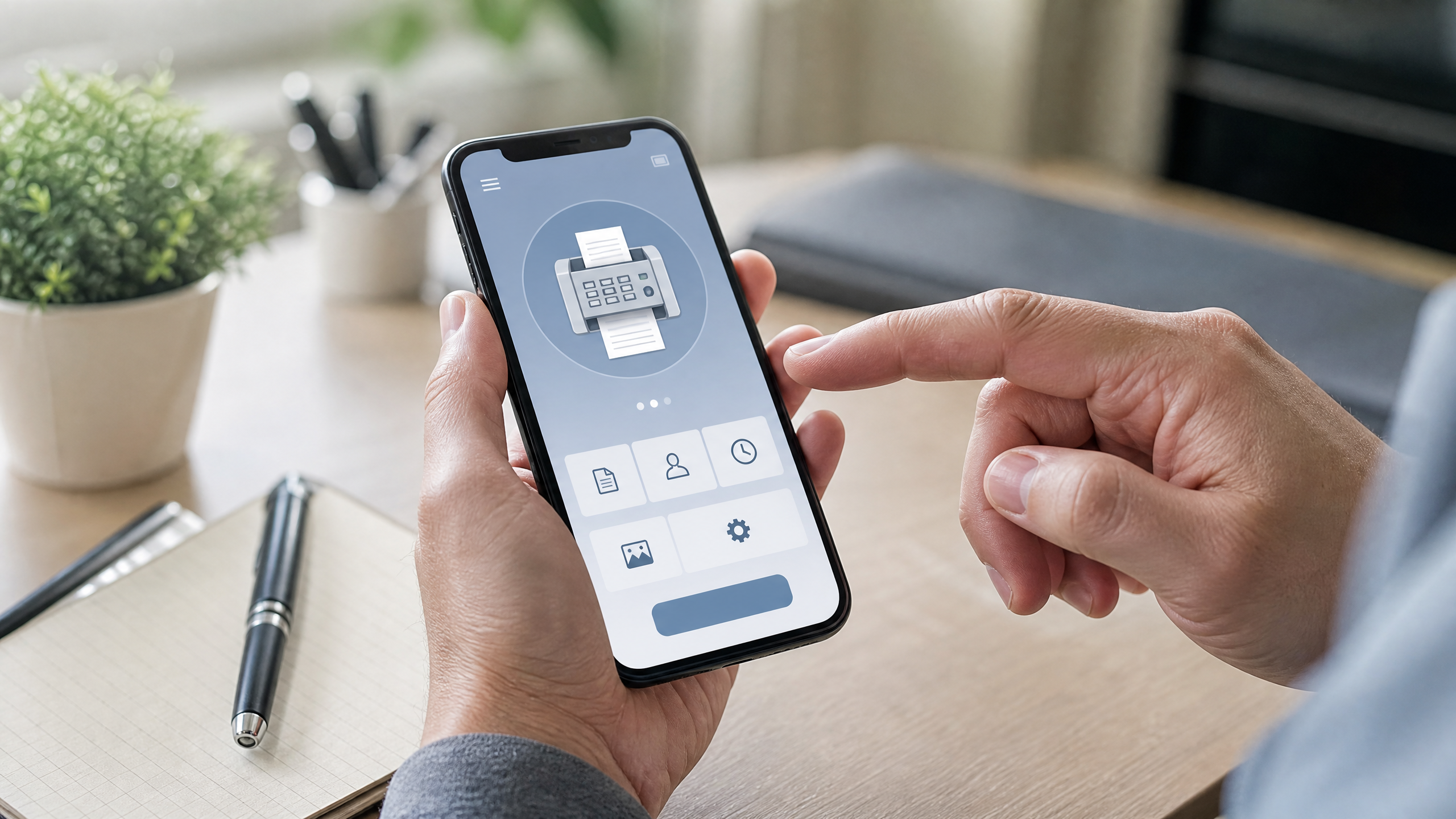
Legitimate send fax from phone free options exist, but they come with constraints. FaxBurner offers 25 free pages on signup. FAX.PLUS provides 10 free pages monthly. If you need to send free fax from iPhone occasionally — say, once a month for a legal document — these tiers work. For anything beyond that, free becomes friction.
Working Within Caps
Batch your pages into a single PDF before sending. Many services count each fax transmission rather than each page, so combining a 5-page contract into one file uses one send credit instead of five. Keep file sizes under 5MB; larger files can hit upload limits on mobile fax free plans.
Cost-Saving Strategies
If you consistently exceed your free cap, upgrade temporarily rather than paying per-page overage fees. Some apps let you purchase a one-month upgrade and cancel before renewal. For non-urgent sends, check whether the service throttles during peak hours and schedule your transmission for early morning instead.
Security, Compliance, and Best Practices
Protecting Sensitive Data
Choose services that encrypt data in transit and at rest. For healthcare or financial documents, verify HIPAA or PCI-DSS compliance explicitly — don't assume. Avoid sending sensitive fax documents from phone over public Wi-Fi. Use a VPN when you're on an unsecured network, and enable two-factor authentication on your fax account.
Quality and Readability
Set your outbound resolution to "Fine" mode, not "Standard." Fine mode renders text sharper, which matters for contracts, forms, and anything with small print. Use grayscale — color scans inflate file size without benefiting legibility on a monochrome fax machine.
Recordkeeping and Audits
Archive delivery confirmations alongside the sent PDFs in a named folder. Cloud storage in Google Drive or iCloud with a consistent naming convention — client name, date, document type — makes retrieval straightforward when compliance audits or disputes arise.
Troubleshooting and FAQs for Mobile Fax
Common Send Errors
If your send fax from phone attempt fails, start with the basics: verify the recipient number digit by digit, shorten any unusually long file name, and retry. Some apps choke on file names with special characters. Failed transmissions are usually an issue with the number, the file, or a temporary server load problem — not your device.
Image Quality Issues
Large image files can time out during upload. Compress your PDF before attaching, or reduce scan resolution from 300 DPI to 200 DPI. If pages look blurry, retake the scan. Place the document flat, eliminate shadows, and shoot straight down rather than at an angle.
Number and Compatibility Problems
Recipient VoIP lines occasionally reject incoming faxes. If the same number fails twice, ask the recipient for an alternate number or a traditional PSTN fax line. Some apps let you adjust the baud rate — dropping to 9600 baud can resolve compatibility issues with older machines. When sending anything client-critical, test to a known-good fax line first to confirm your setup is working before the real send.